
.png)

The one rule
Quick User Guide
The 30-second cheat sheet
Log an activity in 6 clicks
- Search the client's name in the top bar → open the account.
- Click the phone icon in the Activity panel.
- Subject: say what it was ("Lunch with Steve").
- Type: Call, Visit or Other — pick honestly.
- Date: backdate if it already happened; future-date to schedule.
- Comments + link the contact → Save. Frequency clock resets itself.
Part One · Know Your Screen
The Home Dashboard
1
Read your Activity Tracking Dashboard
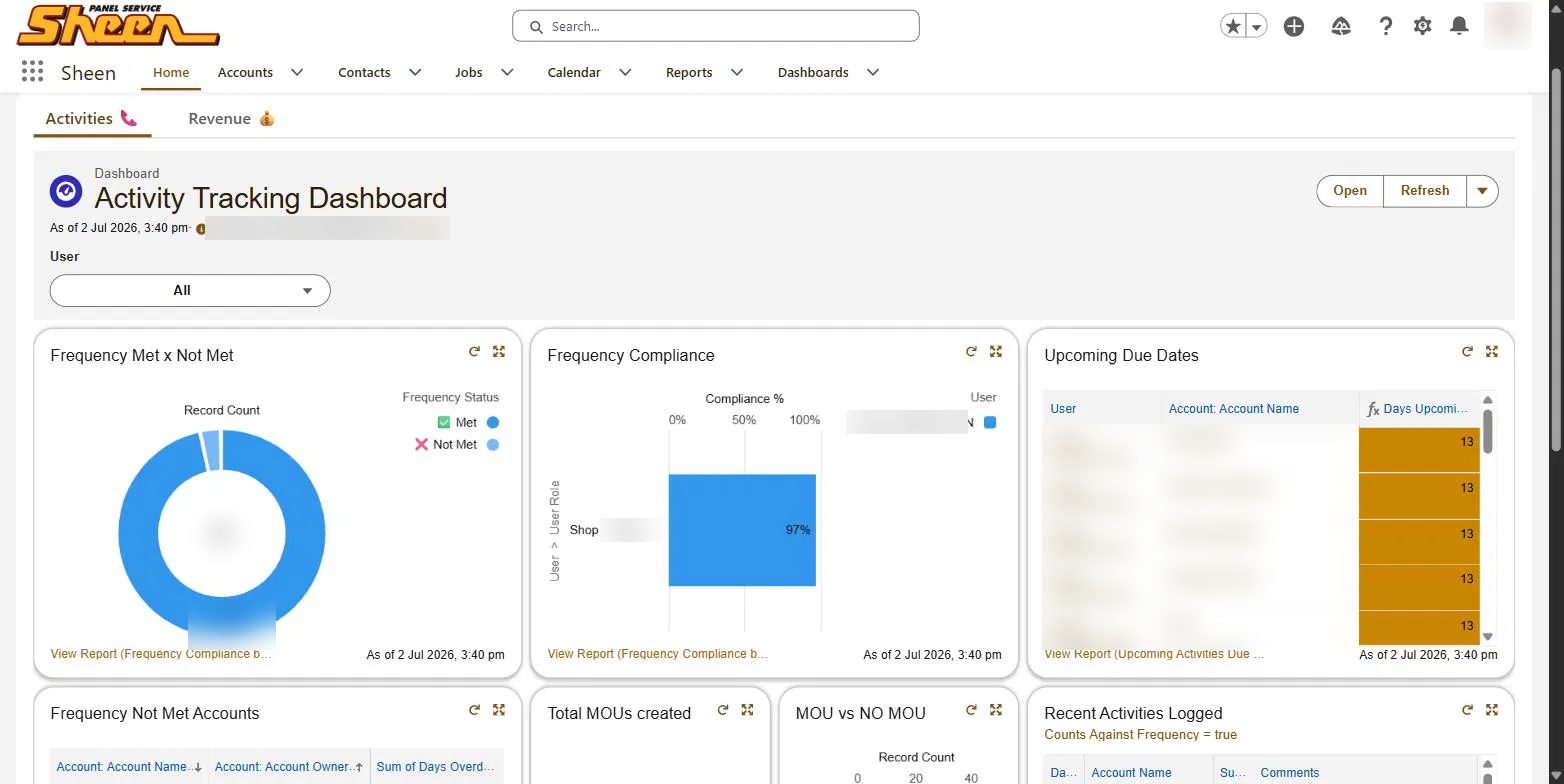
Make it a habit
The 3-a-week habit
Part Two · Find The Account
Getting to the right record
2
Search for the account
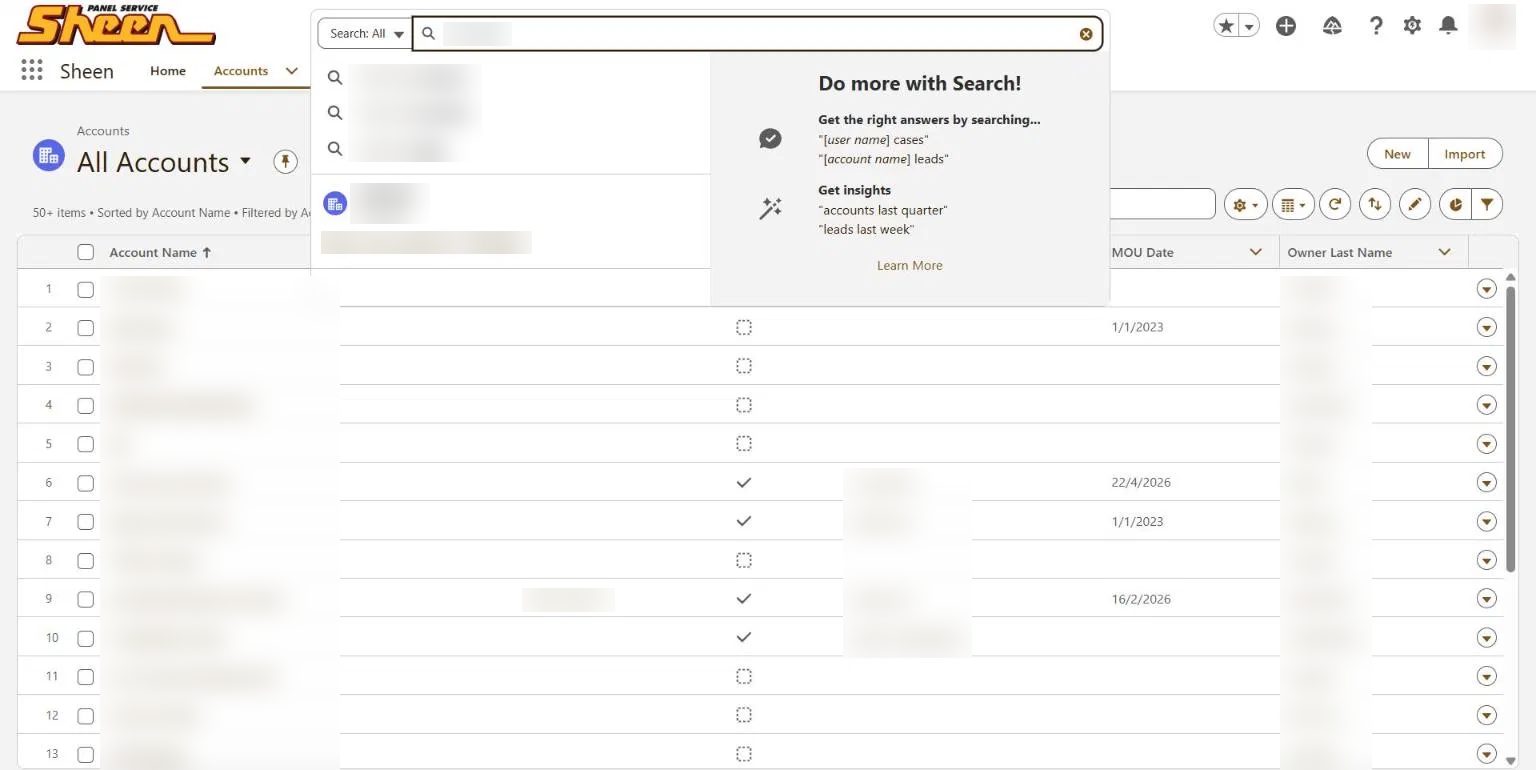
The fastest way in is the search bar at the very top of every screen. Start typing the client's name and Salesforce suggests matching accounts, contacts and tasks as you go — click the account name in the dropdown.
You can also browse via Accounts → All Accounts, but with the number of clients in the system, search wins every time.
Can't find it?
3
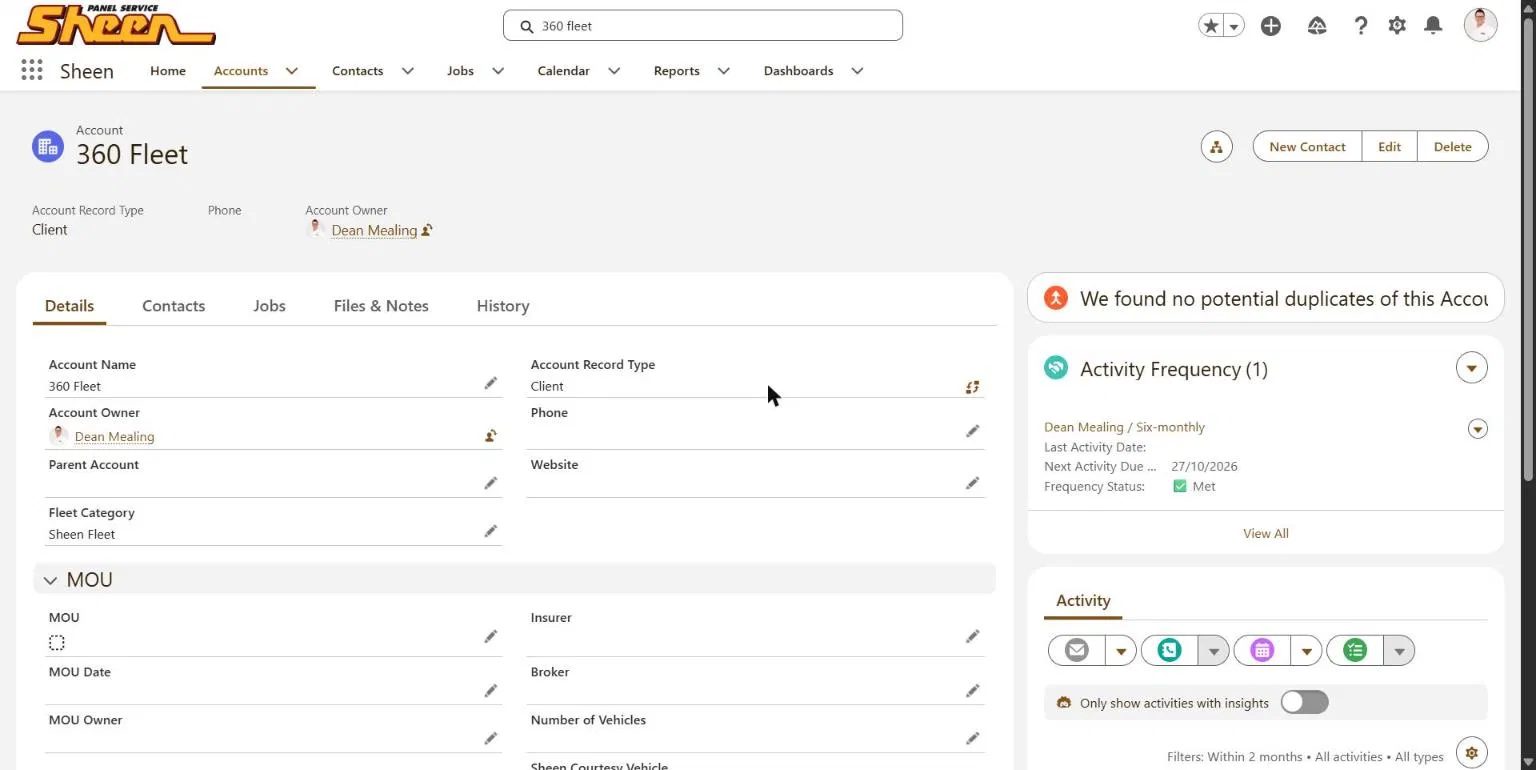
Read the account record

Part Three · Log The Activity
Recording a call or visit
4
Open the activity panel
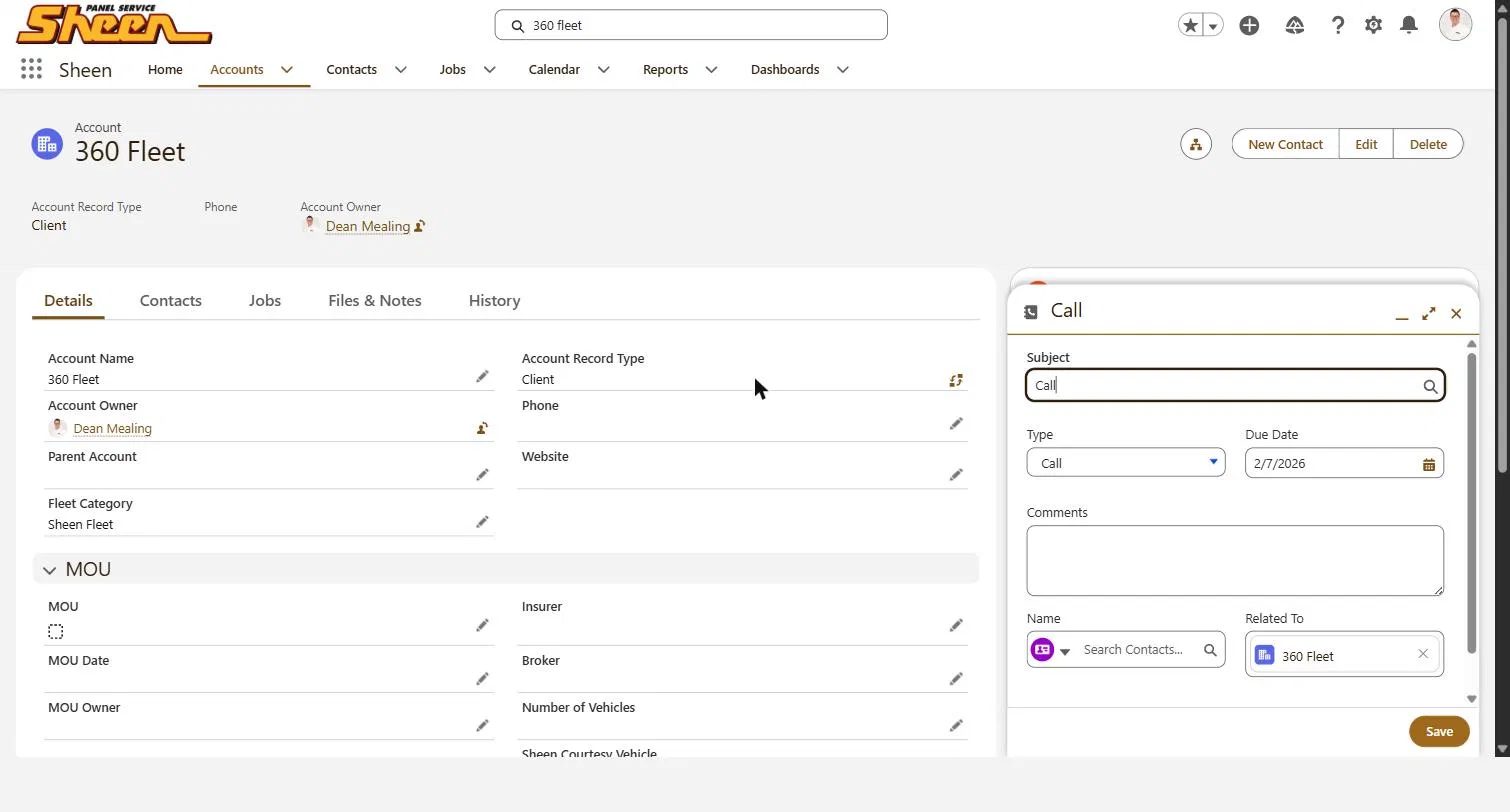
On the account page, find the Activity panel on the right and click the phone icon (Log a Call). A form opens with Related To already linked to the account you're on — leave that as it is.
Give the Subject a name that means something — "Lunch with Steve" or "Quarterly check-in call", not just "Call".
5
Set the Type — Call, Visit or Other
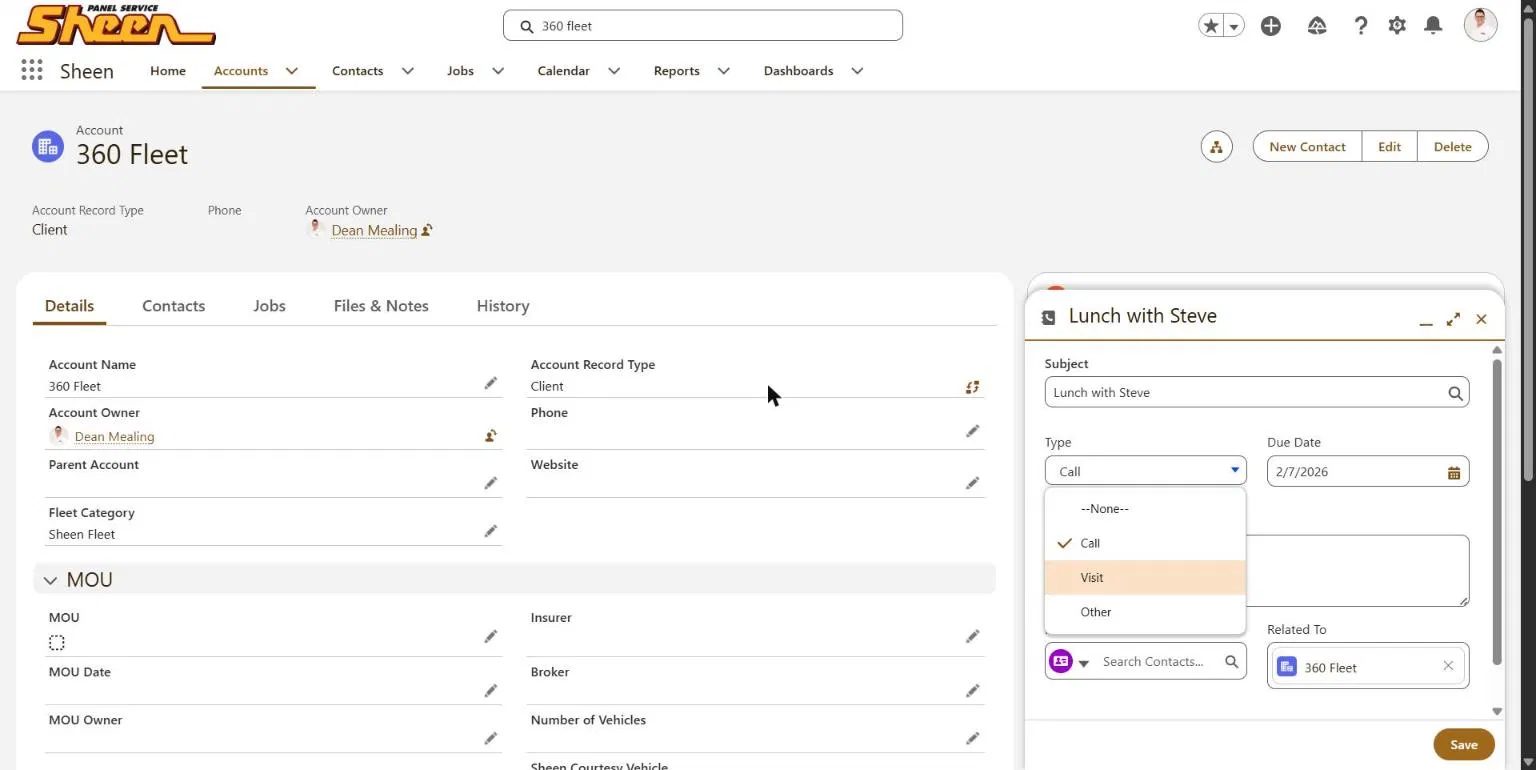
The Type field is what makes the compliance reporting meaningful, so pick honestly:
6
Set the Due Date
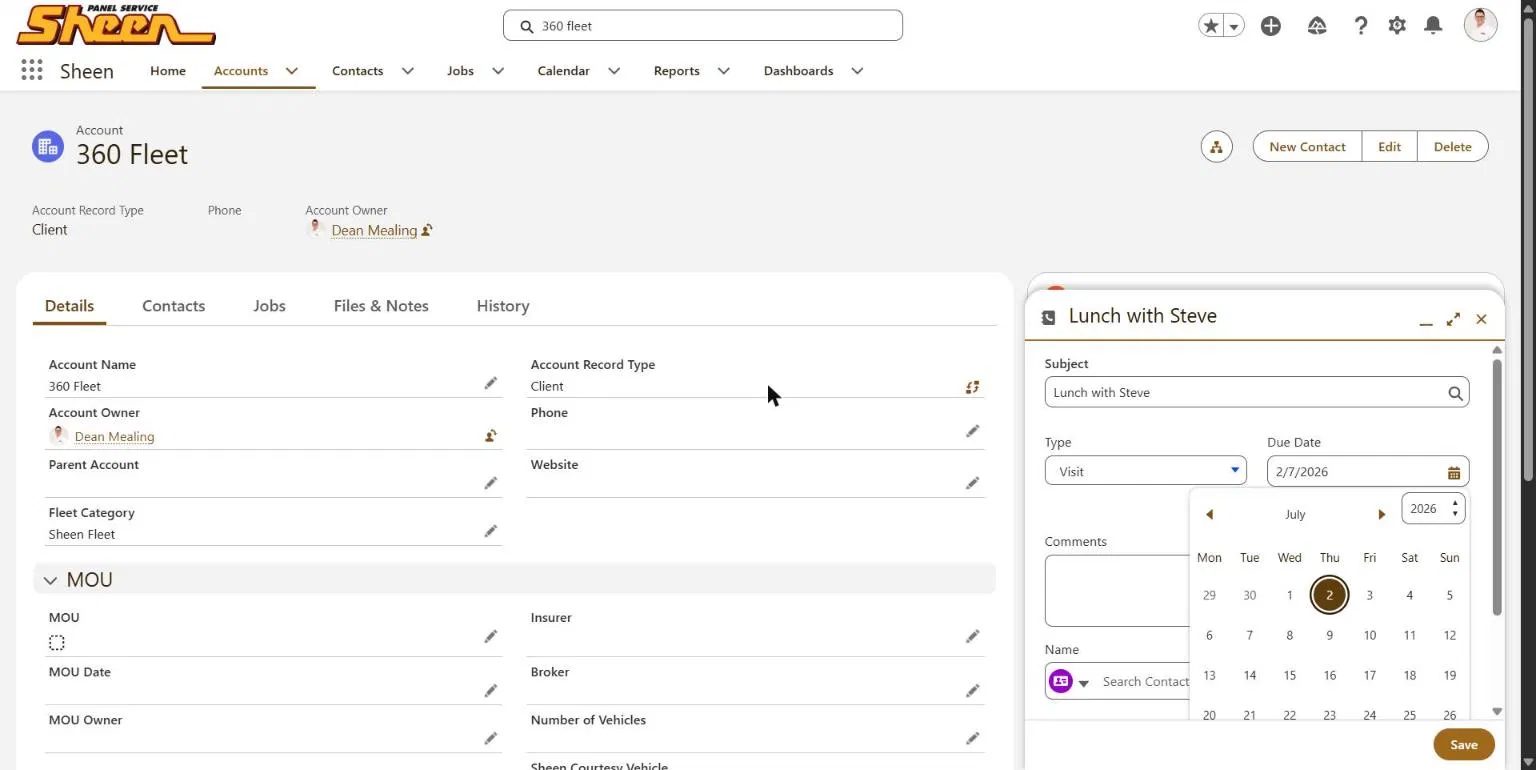
The date defaults to today. Two situations:
Logging something that already happened? Backdate it to the day it actually occurred (e.g. Friday's lunch logged on Monday → set Friday's date).
Scheduling a future visit? Set the future date — it will then appear in the Upcoming Due Dates panel on the Home dashboard as a reminder.
7
Write comments worth reading
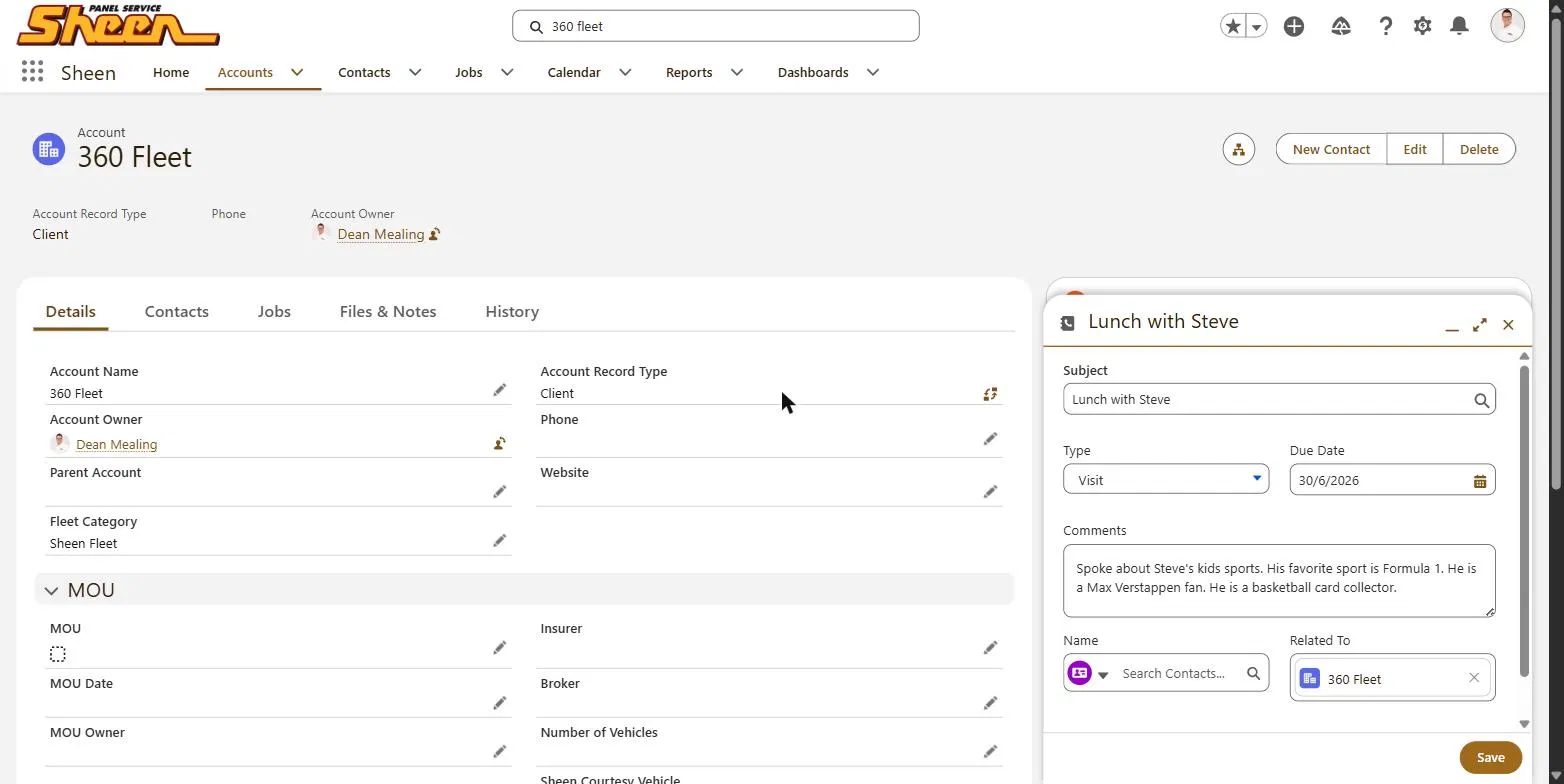
Comments are for the next person who picks up this relationship — which might be you in six months. Capture what was discussed and the personal details that keep the relationship warm: their footy team, their kids' sports, what they drive on weekends.
Good comments look like
Link the contact
8
Save — and watch the clock reset
Hit Save and two things happen automatically:
1. The activity appears in the account's timeline, dated and attributed to you.
2. The Activity Frequency panel updates itself — Last Activity Date becomes your entry, the Next Activity Due date rolls forward (e.g. six months out), and the status stays Met. That's the dashboard donut staying green.
Need to fix or follow up? The ▾ menu on any timeline entry lets you Edit Comments, Change Date, or — most useful — Create Follow-Up Task so the next touchpoint books itself in.